
- "This converter program transfers the file data from MKV to AVI to make the file compatible with AVI device players. "
-------------- Eric
Download GiliSoft Video Converter (Add Subtitle to Video) Windows Version

 Buy GiliSoft Video Converter
What is MKV video file?
The Matroska, or more commonly called MKV, is a video container used with audio and video files to playback standard and HD, high definition, videos. Even though, it is a file that has superior quality, it is not widely accepted, and it is necessary to convert the file to a more common file type. A container is a Meta file format that describes how different data elements coexist in a computer file.
The MKV video file is used with HD videos in 720p or 1080i/p format. The MKV often includes a video and audio file that is a DivX or Xvid format. Those two formats are also used in AVI format, which means no re-encoding the video, but the audio may need re-encoding. The word encoding means transforming a file from one format to another.
What is MKV to AVI Converter?
The MKV to AVI converter is a utility program that performs the necessary encoding to make an MKV file compatible with AVI devices. The converter programs are intuitive and identify the compatible and incompatible formats and encode only when necessary. Not many playback devices recognize MKV files, making the conversion necessary.
Converting MKV to AVI requires downloading a converter file at no cost and putting the program through its paces. The converter program is a pick and click program that requires the user to pick the file to be converted and click on the file to send it into conversion mode.
The converter program is capable of converting files from MKV to formats, in addition to AVI. AVI are a popular and almost industry standard format for devices that playback MP3 files. Not only will the conversion work for playback in an AVI supported device, files can be converted from MKV to AVI for use in video editing programs, as well.
How to convert MKV to AVI?
Step 1: Download GiliSoft Video Converter and install.
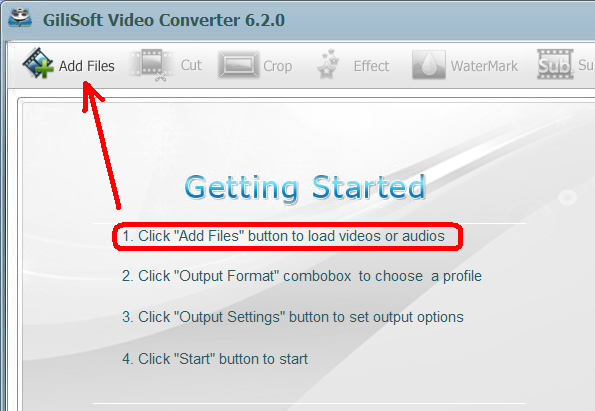
Step 2: Load the MKV video files and select a subtile if have.
Click "Add Files " button to load MKV videos you want to convert.
Step 3: Select output format - AVI video format.
Click "Output Format" combox to select "AVI Video (*.avi) " .
Step 4: Start converting
Click Start button to start converting file to the AVI format.
